GNU IMAGE MANIPULATION PROGRAM
ekta
16 Sep 2016 12:57 PM
- Modern and bright UI
- Ease of use
- Single-Window Mode
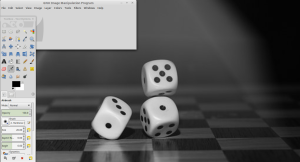 When you start GIMP for the very first time, something like this will greet you. This image is from GIMP version 2.8.10.
 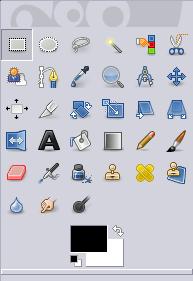 The Toolbox has several icons, each icon represents a different tool. You can activate each tool by left clicking on the tool's icon in the toolbox, or by using a keyboard shortcut. You'll soon become familiar with each tool. Most tools have options, which means that you may set the tool up to perform in a specific way. You'll discover how to use the magic of these settings as you progress through the exercise. Don't think of it as difficult – it's easy!
 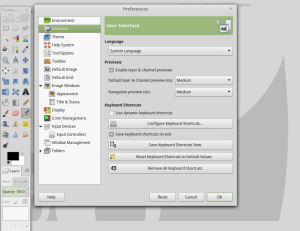 The preferences dialog can be accessed from the image menu-bar, through Edit → Preferences. It lets you customize many aspects of the way GIMP works. The following sections detail the settings that you can customize, and what they affect. Each task requires a different environment and GIMP allows you to customize the view and behavior the way you like it. Starting from the widget theme, allowing you to change colors, widget spacings and icon sizes to custom tool sets in the toolbox. The interface is modulized into so called docks, allowing you to stack them into tabs or keep them open in their own window. Pressing the tab key will toggle them hidden.
 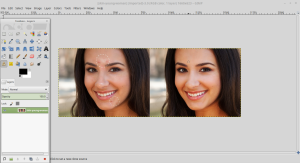 GIMP is ideal for advanced photo retouching techniques. Get rid of unneeded details using the clone tool, or touch up minor details easily with the new healing tool. With the perspective clone tool, it’s not difficult to clone objects with perspective in mind just as easily as with the orthogonal clone.
 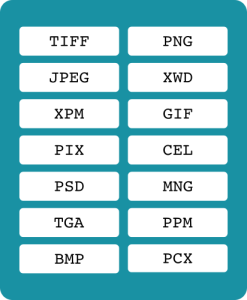 The file format support ranges from the common likes of JPEG (JFIF), GIF, PNG, TIFF to special use formats such as the multi-resolution and multi-color-depth Windows icon files.
 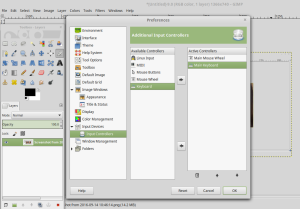 GIMP includes a very unique support for various input devices out of the box. Pressure and tilt sensitive tablets, but also a wide range of USB or MIDI controllers. You can bind often-used actions to device events such as rotating a USB wheel or moving a MIDI controller’s slider. Change the size, angle or opacity of a brush while you paint, bind your favorite scripts to buttons. Speed up your workflow!
 - GNU/Linux
- Microsoft Windows (XP SP3, Vista, 7, 8)
- Mac OS X (10.6 and newer)
- Sun OpenSolaris
- FreeBSD
 References: https://www.gimp.org/ Save